
How to Find the Right PCB Assembly Factory in China: A Complete Guide
Searching for a PCB assembly factory in China can feel overwhelming. Thousands of factories in Shenzhen alone. Each one claiming to
Want to visualize sensor data in a professional, interactive way on your ESP32 Cheap Yellow Display (CYD) ? In this project, you’ll learn how to create a dynamic line chart using LVGL that displays temperature readings from a BME280 sensor. The chart automatically scales, updates in real-time, and even lets you touch data points to see exact values—perfect for environmental monitoring, data logging, or any project where you need to track trends visually.
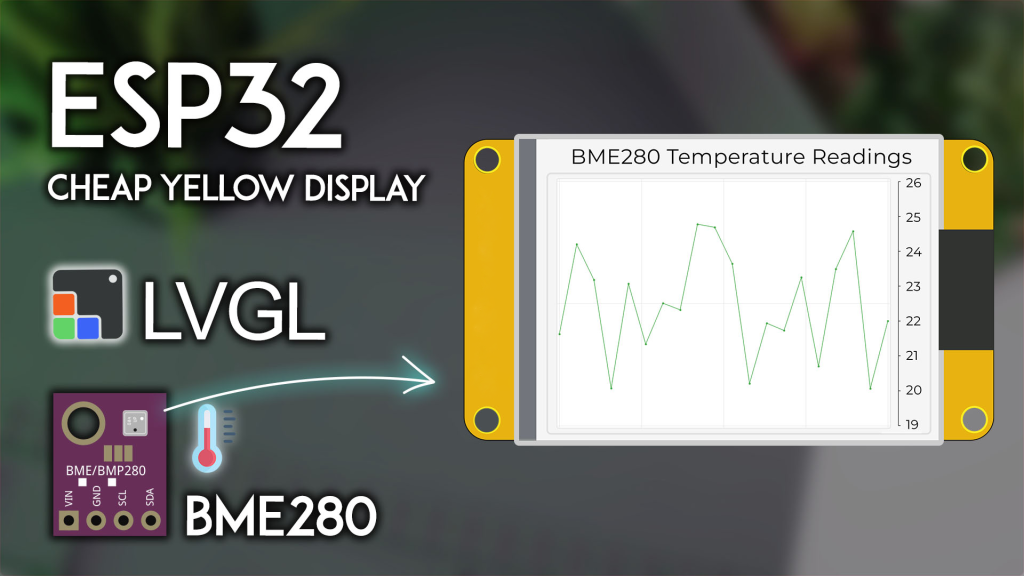
This project combines the power of the ESP32 CYD, the accuracy of the BME280 sensor, and the graphical capabilities of LVGL to create a self-updating temperature chart. Here’s how it works:
Real-time data plotting: The chart displays the last 20 temperature readings
Auto-scaling Y-axis: The vertical range adjusts automatically based on your current data
Circular buffer: When a new reading arrives, the oldest point is removed
Touch interaction: Tap near any data point to see its precise temperature value
10-second updates: New readings are taken and displayed every 10 seconds
This project is an excellent foundation for creating weather stations, industrial monitors, or any data visualization dashboard.
Before starting, gather these components:
| Component | Quantity | Purpose | Where to Buy |
|---|---|---|---|
| ESP32 Cheap Yellow Display (CYD) | 1 | Main board with touchscreen | Check price |
| BME280 sensor module | 1 | Temperature & humidity sensor | BME280 options |
| JST connector (included with CYD) | 1 | Connects sensor to board | Usually included |
| Jumper wires | Few | For sensor connections | – |
👉 Find all components at the best prices here
The CYD board includes a CN1 connector (JST) that provides access to additional GPIOs. Connect your BME280 sensor as follows:
| BME280 Pin | CYD CN1 Pin | ESP32 GPIO |
|---|---|---|
| VCC | 3.3V | – |
| GND | GND | – |
| SDA | SDA | GPIO 27 |
| SCL | SCL | GPIO 22 |
Note: If your CYD didn’t come with the mating JST connector, you can solder wires directly to the CN1 header pins or use a breadboard with jumper wires.
To ensure your project compiles and runs correctly, complete these essential setup steps in order:
If you haven’t already, install ESP32 board support: Installing ESP32 Board in Arduino IDE.
First-time CYD user? Complete our Getting Started with ESP32 CYD guide. You’ll need to:
Install TFT_eSPI library
Configure the critical User_Setup.h file
Test basic display functionality
This project uses LVGL 9.x for the chart interface. Follow our dedicated tutorial to install and configure LVGL properly:
👉 LVGL with ESP32 Cheap Yellow Display
⚠️ CRITICAL: You must use the exact lv_conf.h file provided in that tutorial. Other configurations will not work with this example.
Install the Adafruit BME280 library and its dependencies:
In Arduino IDE: Sketch > Include Library > Manage Libraries
Search for “Adafruit BME280” and install the latest version
Install any prompted dependencies (Adafruit Bus IO, Adafruit Unified Sensor)
For the most accurate touch interaction with data points, we recommend calibrating your touchscreen. This ensures that tapping a data point reliably selects it. Follow our ESP32 CYD Touchscreen Calibration Guide to get your specific calibration coefficients.
Copy the following code into your Arduino IDE. You must replace the placeholder touch calibration values with your own from the calibration guide (or comment out the advanced calibration and use the basic map() method).
/*********
  ESP32 CYD with LVGL - Dynamic Temperature Line Chart (BME280)
  Complete tutorial: https://RandomNerdTutorials.com/esp32-cyd-lvgl-line-chart/
*********/

#include <lvgl.h>
#include <TFT_eSPI.h>
#include <XPT2046_Touchscreen.h>
#include <Wire.h>
#include <Adafruit_Sensor.h>
#include <Adafruit_BME280.h>

// --- BME280 Configuration ---
#define I2C_SDA 27
#define I2C_SCL 22
TwoWire I2CBME = TwoWire(0);
Adafruit_BME280 bme;

// Temperature unit: 1 = Celsius, 0 = Fahrenheit
#define TEMP_CELSIUS 1

// Chart data buffer
#define BME_NUM_READINGS 20
float bme_last_readings[BME_NUM_READINGS] = {0};

// --- Touchscreen Pins (CYD Standard) ---
#define XPT2046_IRQ 36
#define XPT2046_MOSI 32
#define XPT2046_MISO 39
#define XPT2046_CLK 25
#define XPT2046_CS 33

SPIClass touchscreenSPI = SPIClass(VSPI);
XPT2046_Touchscreen touchscreen(XPT2046_CS, XPT2046_IRQ);

// --- Display Dimensions ---
#define SCREEN_WIDTH 240
#define SCREEN_HEIGHT 320

// Touch coordinates
int touchX, touchY, touchZ;

// LVGL draw buffer
#define DRAW_BUF_SIZE (SCREEN_WIDTH * SCREEN_HEIGHT / 10 * (LV_COLOR_DEPTH / 8))
uint32_t draw_buf[DRAW_BUF_SIZE / 4];

// Timing
unsigned long previousMillis = 0;
const long interval = 10000;  // Update chart every 10 seconds

// --- LVGL Logging ---
void log_print(lv_log_level_t level, const char * buf) {
  LV_UNUSED(level);
  Serial.println(buf);
  Serial.flush();
}

// --- Touchscreen Read Function for LVGL ---
void touchscreen_read(lv_indev_t * indev, lv_indev_data_t * data) {
  if(touchscreen.tirqTouched() && touchscreen.touched()) {
    TS_Point p = touchscreen.getPoint();

    // --- ADVANCED CALIBRATION (Recommended) ---
    // Replace these with your own values from the calibration guide!
    float alpha_x = -0.000;   // <<< REPLACE WITH YOUR VALUES
    float beta_x = 0.090;      // <<< REPLACE WITH YOUR VALUES
    float delta_x = -33.771;   // <<< REPLACE WITH YOUR VALUES
    float alpha_y = 0.066;     // <<< REPLACE WITH YOUR VALUES
    float beta_y = 0.000;      // <<< REPLACE WITH YOUR VALUES
    float delta_y = -14.632;   // <<< REPLACE WITH YOUR VALUES

    // Apply calibration and clamp to screen bounds
    touchX = alpha_y * p.x + beta_y * p.y + delta_y;
    touchX = constrain(touchX, 0, SCREEN_WIDTH - 1);

    touchY = alpha_x * p.x + beta_x * p.y + delta_x;
    touchY = constrain(touchY, 0, SCREEN_HEIGHT - 1);

    // --- BASIC CALIBRATION (Alternative) ---
    // If you haven't calibrated, uncomment these lines and comment the advanced section above
    // touchX = map(p.x, 200, 3700, 1, SCREEN_WIDTH);
    // touchY = map(p.y, 240, 3800, 1, SCREEN_HEIGHT);
    // touchX = constrain(touchX, 0, SCREEN_WIDTH - 1);
    // touchY = constrain(touchY, 0, SCREEN_HEIGHT - 1);

    touchZ = p.z;

    data->state = LV_INDEV_STATE_PRESSED;
    data->point.x = touchX;
    data->point.y = touchY;

    // Optional: Print touch data for debugging
    // Serial.printf("Touch: X=%d, Y=%d, Z=%d\n", touchX, touchY, touchZ);
  } else {
    data->state = LV_INDEV_STATE_RELEASED;
  }
}

// --- Callback to draw label on touched chart point ---
static void chart_draw_label_cb(lv_event_t * e) {
  lv_event_code_t code = lv_event_get_code(e);
  lv_obj_t * chart = (lv_obj_t*) lv_event_get_target(e);

  if(code == LV_EVENT_VALUE_CHANGED) {
    lv_obj_invalidate(chart);
  }
  if(code == LV_EVENT_REFR_EXT_DRAW_SIZE) {
    int32_t * s = (int32_t*)lv_event_get_param(e);
    *s = LV_MAX(*s, 20);
  }
  else if(code == LV_EVENT_DRAW_POST_END) {
    int32_t id = lv_chart_get_pressed_point(chart);
    if(id == LV_CHART_POINT_NONE) return;

    lv_chart_series_t * ser = lv_chart_get_series_next(chart, NULL);
    while(ser) {
      lv_point_t p;
      lv_chart_get_point_pos_by_id(chart, ser, id, &p);

      int32_t * y_array = lv_chart_get_y_array(chart, ser);
      int32_t value = y_array[id];
      char buf[32];
      const char * unit = TEMP_CELSIUS ? "\u00B0C" : "\u00B0F";

      // Format label with the actual temperature value
      lv_snprintf(buf, sizeof(buf), " %3.1f%s ", bme_last_readings[id], unit);

      // Draw label background
      lv_draw_rect_dsc_t draw_rect_dsc;
      lv_draw_rect_dsc_init(&draw_rect_dsc);
      draw_rect_dsc.bg_color = lv_color_black();
      draw_rect_dsc.bg_opa = LV_OPA_60;
      draw_rect_dsc.radius = 2;

      lv_area_t a;
      a.x1 = chart->coords.x1 + p.x - 35;
      a.x2 = chart->coords.x1 + p.x + 35;
      a.y1 = chart->coords.y1 + p.y - 30;
      a.y2 = chart->coords.y1 + p.y - 10;

      lv_layer_t * layer = lv_event_get_layer(e);
      lv_draw_rect(layer, &draw_rect_dsc, &a);

      // Draw label text
      lv_draw_label_dsc_t draw_label_dsc;
      lv_draw_label_dsc_init(&draw_label_dsc);
      draw_label_dsc.color = lv_color_white();
      draw_label_dsc.text = buf;
      draw_label_dsc.text_local = true;
      lv_draw_label(layer, &draw_label_dsc, &a);

      ser = lv_chart_get_series_next(chart, ser);
    }
  }
  else if(code == LV_EVENT_RELEASED) {
    lv_obj_invalidate(chart);
  }
}

// --- Create the Chart UI ---
lv_obj_t * chart;
lv_chart_series_t * ser_temp;

void create_chart_ui() {
  // Clear screen
  lv_obj_clean(lv_scr_act());

  // Title label
  lv_obj_t * label = lv_label_create(lv_screen_active());
  lv_label_set_text(label, "BME280 Temperature");
  lv_obj_align(label, LV_ALIGN_TOP_MID, 0, 10);

  // Create chart
  chart = lv_chart_create(lv_screen_active());
  lv_obj_set_size(chart, 280, 200);
  lv_obj_align(chart, LV_ALIGN_CENTER, 0, 10);

  // Configure chart appearance
  lv_chart_set_type(chart, LV_CHART_TYPE_LINE);
  lv_chart_set_div_line_count(chart, 3, 5);
  lv_chart_set_range(chart, LV_CHART_AXIS_PRIMARY_Y, 0, 100); // Will auto-scale
  lv_obj_set_style_line_width(chart, 2, LV_PART_ITEMS);

  // Add data series (temperature)
  ser_temp = lv_chart_add_series(chart, lv_palette_main(LV_PALETTE_RED), LV_CHART_AXIS_PRIMARY_Y);

  // Initialize chart with zeros
  lv_chart_set_ext_y_array(chart, ser_temp, (lv_coord_t*)bme_last_readings);

  // Add touch interaction callback
  lv_obj_add_event_cb(chart, chart_draw_label_cb, LV_EVENT_ALL, NULL);
}

// --- Initialize BME280 Sensor ---
void initBME() {
  I2CBME.begin(I2C_SDA, I2C_SCL, 100000);
  if (!bme.begin(0x76, &I2CBME)) {
    Serial.println("BME280 not found! Check wiring.");
    while (1);
  }
  Serial.println("BME280 initialized.");
}

// --- Read Temperature (returns Celsius or Fahrenheit based on TEMP_CELSIUS) ---
float readTemperature() {
  float temp = bme.readTemperature(); // Always Celsius from sensor
  #if !TEMP_CELSIUS
    temp = temp * 9.0 / 5.0 + 32.0;   // Convert to Fahrenheit
  #endif
  return temp;
}

// --- Update chart with new reading ---
void updateChart() {
  // Shift readings left
  for (int i = 0; i < BME_NUM_READINGS - 1; i++) {
    bme_last_readings[i] = bme_last_readings[i + 1];
  }

  // Get new reading
  float newTemp = readTemperature();
  bme_last_readings[BME_NUM_READINGS - 1] = newTemp;

  // Find min and max for auto-scaling
  float minTemp = bme_last_readings[0];
  float maxTemp = bme_last_readings[0];
  for (int i = 1; i < BME_NUM_READINGS; i++) {
    if (bme_last_readings[i] < minTemp) minTemp = bme_last_readings[i];
    if (bme_last_readings[i] > maxTemp) maxTemp = bme_last_readings[i];
  }

  // Add some padding to the range
  minTemp -= 1.0;
  maxTemp += 1.0;

  // Update chart range
  lv_chart_set_range(chart, LV_CHART_AXIS_PRIMARY_Y, (lv_coord_t)minTemp, (lv_coord_t)maxTemp);

  // Update series data
  lv_chart_set_ext_y_array(chart, ser_temp, (lv_coord_t*)bme_last_readings);
  lv_chart_refresh(chart); // Force redraw
}

// --- Setup ---
void setup() {
  Serial.begin(115200);
  Serial.println("ESP32 CYD LVGL Line Chart Starting...");

  // Initialize BME280
  initBME();

  // Initialize touchscreen
  touchscreenSPI.begin(XPT2046_CLK, XPT2046_MISO, XPT2046_MOSI, XPT2046_CS);
  touchscreen.begin(touchscreenSPI);
  touchscreen.setRotation(1); // Landscape orientation

  // Initialize LVGL
  lv_init();
  lv_log_register_print_cb(log_print);

  // Initialize display
  lv_display_t * disp = lv_tft_espi_create(SCREEN_WIDTH, SCREEN_HEIGHT, draw_buf, sizeof(draw_buf));
  lv_display_set_rotation(disp, LV_DISPLAY_ROTATION_270);

  // Initialize touch input for LVGL
  lv_indev_t * indev = lv_indev_create();
  lv_indev_set_type(indev, LV_INDEV_TYPE_POINTER);
  lv_indev_set_read_cb(indev, touchscreen_read);

  // Create the chart UI
  create_chart_ui();

  // Initial chart update with current temperature
  for (int i = 0; i < BME_NUM_READINGS; i++) {
    updateChart(); // Fill buffer with initial readings
  }

  Serial.println("Ready. Chart updates every 10 seconds.");
}

// --- Main Loop ---
void loop() {
  unsigned long currentMillis = millis();
  if (currentMillis - previousMillis >= interval) {
    previousMillis = currentMillis;
    updateChart();
    Serial.printf("New temperature: %.2f\n", bme_last_readings[BME_NUM_READINGS - 1]);
  }

  lv_task_handler();
  lv_tick_inc(5);
  delay(5);
}
The sensor connects via I2C on pins GPIO 27 (SDA) and GPIO 22 (SCL). The initBME() function establishes communication, and readTemperature() returns the current temperature in your chosen unit.
The bme_last_readings array acts as a circular buffer holding 20 readings. When updateChart() is called:
All values shift left (oldest discarded)
New reading is added at the end
The Y-axis range recalculates based on current min/max values
The chart refreshes to show updated data
The chart_draw_label_cb() function handles touch events on the chart:
Detects which data point was touched
Draws a black label with the exact temperature value
Automatically cleans up when touch is released
This makes it easy to inspect individual readings without clutter.
The code includes two methods for touch:
Advanced calibration (recommended): Uses 6 coefficients from the calibration guide for pixel-perfect accuracy
Basic mapping: Simple map() function that works reasonably well for most boards
For best results, complete the touchscreen calibration tutorial and replace the placeholder coefficients.
Upload the code to your ESP32 CYD
Open Serial Monitor (115200 baud) to see debug output
Observe the chart—it should start plotting temperature readings every 10 seconds
Touch any data point on the line—a label appears showing the exact temperature
If the chart doesn’t update or touch doesn’t work:
Verify BME280 wiring (SDA→27, SCL→22)
Check that you’ve installed LVGL and TFT_eSPI with the correct configuration files
Try the basic touch mapping if advanced calibration seems off
This foundation opens many possibilities:
The BME280 also measures humidity and pressure. Create additional chart series to display all three simultaneously.
The CYD has a microSD slot. Save all readings with timestamps for later analysis.
Send temperature data to a web server, database, or IoT platform like Blynk or ThingSpeak.
Add buttons to switch between different time scales (last hour, last day, etc.).
Trigger the RGB LED or a sounder if temperature exceeds a threshold.
Ready to build your own temperature chart? Here are the parts you’ll need:
ESP32 Cheap Yellow Display (CYD) – Main board with touchscreen
BME280 Sensor Module – For accurate temperature readings
👉 Check all components and best prices here
You’ve just built a professional-quality real-time temperature chart on the ESP32 Cheap Yellow Display using LVGL. This project demonstrates:
Dynamic data visualization with auto-scaling axes
Touch interaction for precise value inspection
Sensor integration with the popular BME280
Real-time updates with circular buffer management
This same pattern can visualize any time-series data—stock prices, signal strength, air quality, or machine performance. The ESP32 CYD and LVGL make it surprisingly easy to create polished, interactive displays for your projects.
Get your components today and start visualizing your data!
======================================
No account yet?
Create an Account