
How to Find the Right PCB Assembly Factory in China: A Complete Guide
Searching for a PCB assembly factory in China can feel overwhelming. Thousands of factories in Shenzhen alone. Each one claiming to
Want to create a professional-looking data dashboard on your ESP32 Cheap Yellow Display? In this project, you’ll learn how to build a responsive table using LVGL that displays real-time readings from a BME280 sensor (temperature, humidity, pressure) and the built-in LDR (light sensor). The table also shows the current date, time (from an internet API), and your board’s IP address—all updated with a single touch of a floating refresh button.
This project is perfect for creating environmental monitoring stations, weather dashboards, or any IoT application where you need to present multiple sensor values in a clean, organized format.
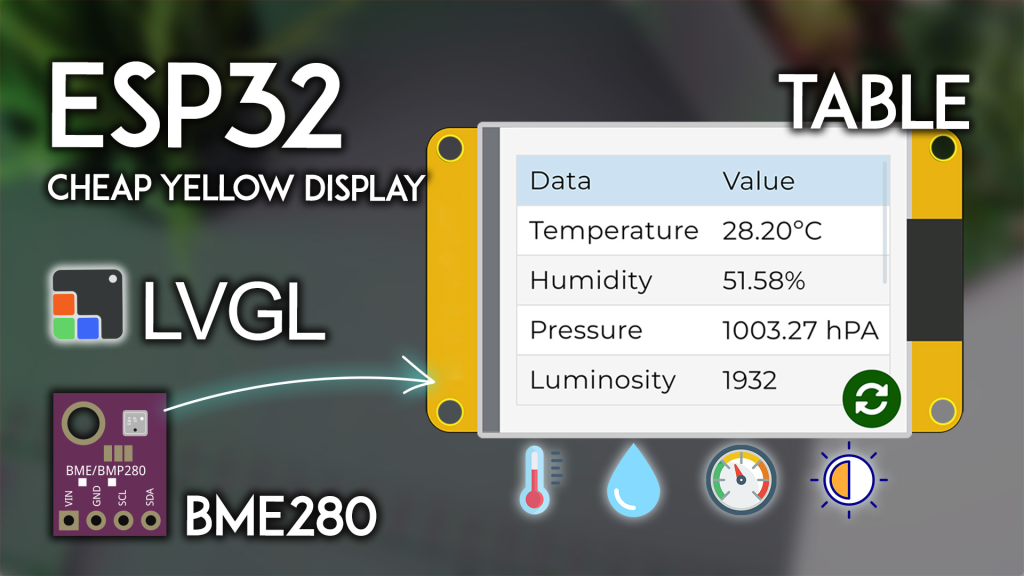
This project combines several powerful features into one cohesive dashboard:
LVGL data table: Displays sensor readings in a clean two-column format
Multiple sensors: BME280 (temperature, humidity, pressure) + CYD’s built-in LDR
Internet time: Fetches accurate date/time from WorldTimeAPI (Wi-Fi required)
IP address display: Shows the ESP32‘s local network address
Touch refresh: A floating button updates all values instantly
Auto-scaling: Temperature displayed in °C or °F (configurable)
Note: This project requires an internet connection to fetch the current date and time. If Wi-Fi isn’t available, you can omit the time feature or add an RTC module.
| Component | Quantity | Purpose | Where to Buy |
|---|---|---|---|
| ESP32 Cheap Yellow Display (CYD) | 1 | Main board with touchscreen & LDR | Check price |
| BME280 sensor module | 1 | Temperature, humidity, pressure | BME280 options |
| JST connector (included with CYD) | 1 | Connects sensor to CN1 header | Usually included |
| Jumper wires | 4 | For sensor connections | – |
| Wi-Fi router | 1 | For internet time (assumed available) | – |
👉 Find all components at the best prices here
The CYD board includes a CN1 connector (JST) that provides access to additional GPIOs. Connect your BME280 sensor as follows:
| BME280 Pin | CYD CN1 Pin | ESP32 GPIO |
|---|---|---|
| VCC | 3.3V | – |
| GND | GND | – |
| SDA | SDA | GPIO 27 |
| SCL | SCL | GPIO 22 |
Built-in LDR: The CYD already has a light-dependent resistor connected to GPIO 34—no external wiring needed.
Complete these essential setup steps in order:
If not already done, install ESP32 boards in Arduino IDE: Installing ESP32 Board in Arduino IDE.
First-time CYD user? Complete our Getting Started with ESP32 CYD guide. You’ll need to:
Install TFT_eSPI library
Configure the critical User_Setup.h file
Test basic display functionality
This project uses LVGL 9.x for the table interface. Follow our dedicated tutorial:
👉 LVGL with ESP32 Cheap Yellow Display
⚠️ CRITICAL: You must use the exact lv_conf.h file from that tutorial. Other configurations will not work.
Install these libraries via Arduino Library Manager (Sketch > Include Library > Manage Libraries):
| Library | Version | Purpose |
|---|---|---|
| ArduinoJson by Benoit Blanchon | 7.0.4+ | Parse WorldTimeAPI JSON responses |
| Adafruit BME280 by Adafruit | Latest | Read BME280 sensor |
| Adafruit Unified Sensor | Latest | Dependency for BME280 |
| Adafruit Bus IO | Latest | Dependency for BME280 |
For the most accurate touch interaction with the refresh button, we recommend calibrating your touchscreen. Follow our ESP32 CYD Touchscreen Calibration Guide to get your specific calibration coefficients.
Copy the following code into your Arduino IDE. You must modify two sections before uploading:
Wi-Fi credentials: Replace with your network SSID and password
Timezone: Set your timezone (e.g., “America/New_York”, “Europe/London”)
(Optional) Touch calibration: Replace placeholder values with your own
/*********
  ESP32 CYD with LVGL - BME280 Sensor Data Table
  Displays temperature, humidity, pressure, LDR, date, time, and IP
  Complete tutorial: https://RandomNerdTutorials.com/esp32-cyd-lvgl-display-bme280-data-table/
*********/

#include <lvgl.h>
#include <TFT_eSPI.h>
#include <XPT2046_Touchscreen.h>
#include <WiFi.h>
#include <HTTPClient.h>
#include <ArduinoJson.h>
#include <Wire.h>
#include <Adafruit_Sensor.h>
#include <Adafruit_BME280.h>

// --- CONFIGURATION: YOU MUST EDIT THESE ---
const char* ssid = "YOUR_WIFI_SSID";          // Replace with your Wi-Fi name
const char* password = "YOUR_WIFI_PASSWORD";  // Replace with your Wi-Fi password
const char* timezone = "Europe/Lisbon";       // Replace with your timezone (see list below)
// --- END CONFIGURATION ---

// Common timezone examples:
// "America/New_York", "America/Chicago", "America/Denver", "America/Los_Angeles"
// "Europe/London", "Europe/Paris", "Europe/Berlin", "Europe/Rome"
// "Asia/Tokyo", "Asia/Shanghai", "Asia/Singapore", "Australia/Sydney"

// --- BME280 Configuration ---
#define I2C_SDA 27
#define I2C_SCL 22
#define SEALEVELPRESSURE_HPA (1013.25)
TwoWire I2CBME = TwoWire(0);
Adafruit_BME280 bme;

// Temperature unit: 1 = Celsius, 0 = Fahrenheit
#define TEMP_CELSIUS 1

// --- LDR Pin (built-in) ---
#define LDR_PIN 34

// --- Touchscreen Pins (CYD Standard) ---
#define XPT2046_IRQ 36
#define XPT2046_MOSI 32
#define XPT2046_MISO 39
#define XPT2046_CLK 25
#define XPT2046_CS 33

SPIClass touchscreenSPI = SPIClass(VSPI);
XPT2046_Touchscreen touchscreen(XPT2046_CS, XPT2046_IRQ);

// --- Display Dimensions ---
#define SCREEN_WIDTH 240
#define SCREEN_HEIGHT 320

// Touch coordinates
int touchX, touchY, touchZ;

// LVGL draw buffer
#define DRAW_BUF_SIZE (SCREEN_WIDTH * SCREEN_HEIGHT / 10 * (LV_COLOR_DEPTH / 8))
uint32_t draw_buf[DRAW_BUF_SIZE / 4];

// --- Global Variables for Date/Time ---
String current_date;
String current_time;

// --- LVGL Objects ---
static lv_obj_t * table;
static lv_obj_t * refresh_btn;

// --- Function Declarations ---
void get_date_and_time();
void update_table_values();

// --- LVGL Logging ---
void log_print(lv_log_level_t level, const char * buf) {
  LV_UNUSED(level);
  Serial.println(buf);
  Serial.flush();
}

// --- Touchscreen Read Function for LVGL ---
void touchscreen_read(lv_indev_t * indev, lv_indev_data_t * data) {
  if(touchscreen.tirqTouched() && touchscreen.touched()) {
    TS_Point p = touchscreen.getPoint();

    // --- ADVANCED CALIBRATION (Recommended) ---
    // Replace these with your own values from the calibration guide!
    float alpha_x = -0.000;   // <<< REPLACE WITH YOUR VALUES
    float beta_x = 0.090;      // <<< REPLACE WITH YOUR VALUES
    float delta_x = -33.771;   // <<< REPLACE WITH YOUR VALUES
    float alpha_y = 0.066;     // <<< REPLACE WITH YOUR VALUES
    float beta_y = 0.000;      // <<< REPLACE WITH YOUR VALUES
    float delta_y = -14.632;   // <<< REPLACE WITH YOUR VALUES

    // Apply calibration and clamp to screen bounds
    touchX = alpha_y * p.x + beta_y * p.y + delta_y;
    touchX = constrain(touchX, 0, SCREEN_WIDTH - 1);

    touchY = alpha_x * p.x + beta_x * p.y + delta_x;
    touchY = constrain(touchY, 0, SCREEN_HEIGHT - 1);

    // --- BASIC CALIBRATION (Alternative) ---
    // If you haven't calibrated, uncomment these lines and comment the advanced section above
    // touchX = map(p.x, 200, 3700, 1, SCREEN_WIDTH);
    // touchY = map(p.y, 240, 3800, 1, SCREEN_HEIGHT);
    // touchX = constrain(touchX, 0, SCREEN_WIDTH - 1);
    // touchY = constrain(touchY, 0, SCREEN_HEIGHT - 1);

    touchZ = p.z;

    data->state = LV_INDEV_STATE_PRESSED;
    data->point.x = touchX;
    data->point.y = touchY;

    // Optional debug
    // Serial.printf("Touch: X=%d, Y=%d, Z=%d\n", touchX, touchY, touchZ);
  } else {
    data->state = LV_INDEV_STATE_RELEASED;
  }
}

// --- Fetch Date and Time from WorldTimeAPI ---
void get_date_and_time() {
  HTTPClient http;
  String url = String("http://worldtimeapi.org/api/timezone/") + timezone;
  http.begin(url);
  int httpCode = http.GET();

  if (httpCode == HTTP_CODE_OK) {
    String payload = http.getString();
    JsonDocument doc;
    DeserializationError error = deserializeJson(doc, payload);

    if (!error) {
      const char* datetime = doc["datetime"];
      // Format: "2024-10-15T14:30:45.123456+01:00"
      if (datetime) {
        String dt = String(datetime);
        current_date = dt.substring(0, 10);  // YYYY-MM-DD
        current_time = dt.substring(11, 19); // HH:MM:SS (UTC)
      }
    }
  }
  http.end();
}

// --- Refresh Button Event Handler ---
static void float_button_event_cb(lv_event_t * e) {
  update_table_values();
}

// --- Update All Table Values ---
static void update_table_values(void) {
  // Read BME280
  float temp = bme.readTemperature();
  float hum = bme.readHumidity();
  float pres = bme.readPressure() / 100.0F;

  // Convert temperature if needed
  #if TEMP_CELSIUS
    String temp_str = String(temp) + " °C";
  #else
    temp = temp * 1.8 + 32;
    String temp_str = String(temp) + " °F";
  #endif

  String hum_str = String(hum) + " %";
  String pres_str = String(pres) + " hPa";

  // Read LDR (0-4095)
  String ldr_str = String(analogRead(LDR_PIN));

  // Get fresh time from API
  get_date_and_time();

  // Update table cells
  // Column 0 (labels)
  lv_table_set_cell_value(table, 0, 0, "Data");
  lv_table_set_cell_value(table, 1, 0, "Temperature");
  lv_table_set_cell_value(table, 2, 0, "Humidity");
  lv_table_set_cell_value(table, 3, 0, "Pressure");
  lv_table_set_cell_value(table, 4, 0, "Luminosity");
  lv_table_set_cell_value(table, 5, 0, "Date");
  lv_table_set_cell_value(table, 6, 0, "Time");
  lv_table_set_cell_value(table, 7, 0, "IP Address");

  // Column 1 (values)
  lv_table_set_cell_value(table, 0, 1, "Value");
  lv_table_set_cell_value(table, 1, 1, temp_str.c_str());
  lv_table_set_cell_value(table, 2, 1, hum_str.c_str());
  lv_table_set_cell_value(table, 3, 1, pres_str.c_str());
  lv_table_set_cell_value(table, 4, 1, ldr_str.c_str());
  lv_table_set_cell_value(table, 5, 1, current_date.c_str());
  lv_table_set_cell_value(table, 6, 1, current_time.c_str());
  lv_table_set_cell_value(table, 7, 1, WiFi.localIP().toString().c_str());
}

// --- Draw Event Callback (for cell styling) ---
static void draw_event_cb(lv_event_t * e) {
  lv_draw_task_t * draw_task = lv_event_get_draw_task(e);
  lv_draw_dsc_base_t * base_dsc = (lv_draw_dsc_base_t*) draw_task->draw_dsc;

  if(base_dsc->part == LV_PART_ITEMS) {
    uint32_t row = base_dsc->id1;
    uint32_t col = base_dsc->id2;

    // Center-align the header row (row 0)
    if(row == 0) {
      lv_draw_label_dsc_t * label_draw_dsc = lv_draw_task_get_label_dsc(draw_task);
      if(label_draw_dsc) {
        label_draw_dsc->align = LV_TEXT_ALIGN_CENTER;
      }
    }
  }
}

// --- Create the LVGL User Interface ---
void create_ui() {
  // Create a table
  table = lv_table_create(lv_screen_active());
  lv_obj_set_size(table, 280, 200);
  lv_obj_align(table, LV_ALIGN_CENTER, 0, -10);

  // Set column widths
  lv_table_set_column_width(table, 0, 120);
  lv_table_set_column_width(table, 1, 120);

  // Add custom draw event for styling
  lv_obj_add_event_cb(table, draw_event_cb, LV_EVENT_DRAW_TASK_ADDED, NULL);

  // Create floating refresh button
  refresh_btn = lv_btn_create(lv_screen_active());
  lv_obj_set_size(refresh_btn, 50, 50);
  lv_obj_align(refresh_btn, LV_ALIGN_BOTTOM_RIGHT, -10, -10);
  lv_obj_add_event_cb(refresh_btn, float_button_event_cb, LV_EVENT_CLICKED, NULL);

  // Add refresh icon (simple label with LVGL symbol)
  lv_obj_t * btn_label = lv_label_create(refresh_btn);
  lv_label_set_text(btn_label, LV_SYMBOL_REFRESH);
  lv_obj_center(btn_label);

  // Initial table update
  update_table_values();
}

// --- Initialize BME280 Sensor ---
void initBME() {
  I2CBME.begin(I2C_SDA, I2C_SCL, 100000);
  if (!bme.begin(0x76, &I2CBME)) {
    Serial.println("BME280 not found! Check wiring.");
    while (1);
  }
  Serial.println("BME280 initialized.");
}

// --- Connect to Wi-Fi ---
void connectWiFi() {
  Serial.print("Connecting to Wi-Fi");
  WiFi.begin(ssid, password);
  while (WiFi.status() != WL_CONNECTED) {
    delay(500);
    Serial.print(".");
  }
  Serial.println("\nWiFi connected. IP: " + WiFi.localIP().toString());
}

// --- Setup ---
void setup() {
  Serial.begin(115200);
  Serial.println("ESP32 CYD Sensor Data Table Starting...");

  // Connect to Wi-Fi
  connectWiFi();

  // Initialize BME280
  initBME();

  // Initialize touchscreen
  touchscreenSPI.begin(XPT2046_CLK, XPT2046_MISO, XPT2046_MOSI, XPT2046_CS);
  touchscreen.begin(touchscreenSPI);
  touchscreen.setRotation(1); // Landscape orientation

  // Initialize LVGL
  lv_init();
  lv_log_register_print_cb(log_print);

  // Initialize display
  lv_display_t * disp = lv_tft_espi_create(SCREEN_WIDTH, SCREEN_HEIGHT,
                                            draw_buf, sizeof(draw_buf));
  lv_display_set_rotation(disp, LV_DISPLAY_ROTATION_270);

  // Initialize touch input for LVGL
  lv_indev_t * indev = lv_indev_create();
  lv_indev_set_type(indev, LV_INDEV_TYPE_POINTER);
  lv_indev_set_read_cb(indev, touchscreen_read);

  // Create the UI
  create_ui();

  Serial.println("Ready. Table updates on refresh button press.");
}

// --- Main Loop ---
void loop() {
  lv_task_handler();
  lv_tick_inc(5);
  delay(5);
}
The ESP32 connects to your Wi-Fi network and queries the WorldTimeAPI for the current date/time in your specified timezone. The API returns a JSON string, which we parse using ArduinoJson to extract the date and time.
BME280: Reads temperature, humidity, and pressure via I2C
LDR: Reads the built-in light sensor on GPIO 34 (analog value 0-4095)
The table is created with lv_table_create() and has two columns:
Column 0: Labels (Data, Temperature, Humidity, etc.)
Column 1: Current values (updated on refresh)
A floating button with a refresh icon (LV_SYMBOL_REFRESH) calls update_table_values() when clicked, fetching fresh sensor readings and time.
The draw_event_cb() function centers the text in the header row (row 0) for a cleaner look.
Replace your Wi-Fi credentials and timezone in the configuration section
Upload the code to your ESP32 CYD
Open Serial Monitor (115200 baud) to see connection status
Observe the display—after connecting to Wi-Fi, the table should populate with:
Temperature, humidity, pressure from BME280
Luminosity value from built-in sensor
Current date and time (from API)
Your ESP32’s IP address
Tap the refresh button (bottom right) to update all values
| Problem | Likely Solution |
|---|---|
| No sensor data | Check BME280 wiring (SDA→27, SCL→22) |
| “–:–” for time | Verify Wi-Fi credentials and timezone string |
| Table not updating | Check touch calibration or use basic mapping |
| Compilation errors | Ensure LVGL and TFT_eSPI are configured correctly (see prerequisites) |
| IP shows 0.0.0.0 | Wi-Fi connection failed—check credentials and router |
This foundation opens many possibilities:
The CYD has a microSD slot. Log all readings with timestamps for later analysis.
Use LVGL charts to show temperature or humidity over time (see our line chart tutorial).
Connect additional I2C sensors (e.g., air quality, CO2) and add rows to the table.
Power from a USB power bank for portable environmental monitoring.
Forward readings to MQTT, Blynk, or a web server for remote monitoring.
Ready to build your own sensor data dashboard?
ESP32 Cheap Yellow Display (CYD) – Main display unit
BME280 Sensor Module – For temperature, humidity, and pressure
👉 Check all components and best prices here
You’ve just built a professional-grade sensor data dashboard on the ESP32 Cheap Yellow Display using LVGL. This project demonstrates:
Tabular data presentation with LVGL’s table widget
Multiple sensor integration (BME280 + built-in LDR)
Internet time fetching via WorldTimeAPI
Touch-based refresh for user interaction
Clean, organized display of environmental data
This same pattern can display any kind of structured data—from weather stations to industrial monitoring systems. The ESP32 CYD and LVGL make it surprisingly easy to create polished, interactive dashboards.
Get your components today and start building your own data display!
======================================
No account yet?
Create an Account