
How to Find the Right PCB Assembly Factory in China: A Complete Guide
Searching for a PCB assembly factory in China can feel overwhelming. Thousands of factories in Shenzhen alone. Each one claiming to
Radio-Frequency Identification (RFID) technology has moved far beyond retail security tags, becoming a cornerstone for secure access systems, inventory management, smart locks, and interactive projects. At the heart of many DIY and professional applications is the affordable and versatile MFRC522 RFID reader/writer module. When paired with the powerful, Wi-Fi-enabled ESP32 microcontroller, you unlock a world of possibilities for connected, intelligent device identification.
This definitive guide goes beyond basic “hello world” examples. You will gain a deep, practical understanding of how to integrate the MFRC522 with the ESP32 using the Arduino IDE, covering everything from reading a card’s unique ID (UID) to securely writing and reading custom data blocks. We’ll demystify the memory structure of MIFARE Classic 1K tags, provide robust, production-ready code, and share critical best practices to avoid common pitfalls that can render cards unusable. Whether you’re building a door entry system, a tool tracking log, or a personalized smart project, this tutorial provides the expertise and trustworthy foundation you need.
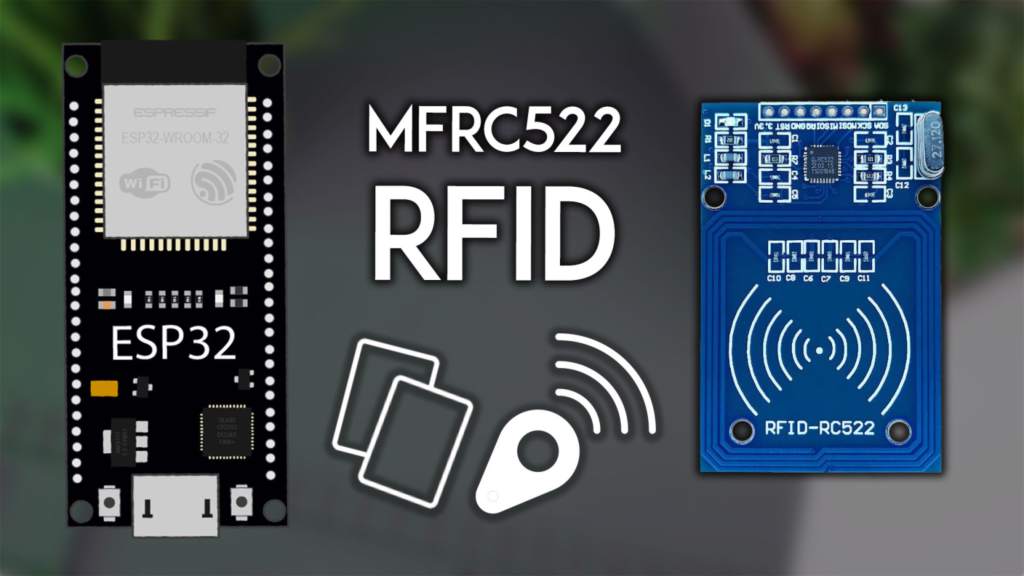
An RFID system consists of two main components:
Reader/Writer (PCD – Proximity Coupling Device): The active device that generates a radio frequency field. In our case, this is the MFRC522 module.
Tag or Card (PICC – Proximity Integrated Circuit Card): The passive device (like the keychain or card included with the module) that receives energy from the reader’s field and responds with its stored data. Each tag has a globally unique identifier (UID).
The MFRC522 operates at 3.3V, which aligns perfectly with the ESP32‘s logic level, eliminating the need for voltage shifters. It supports both SPI and I2C communication protocols, offering flexibility in wiring. The ESP32, with its dual-core processor and wireless capabilities, can not only handle the RFID communication but also log access attempts to the cloud, send notifications, or integrate into a larger home automation system.
A critical part of working with RFID is understanding how data is stored. The common MIFARE Classic 1K tag has a capacity of 1024 bytes (1 KB), organized with a specific and important structure:
| Memory Segment | Description | Key Consideration |
|---|---|---|
| 16 Sectors | The tag is divided into 16 sectors (0-15). | Each sector is independently secured. |
| 4 Blocks per Sector | Each sector contains 4 blocks (0-3). | Each block holds 16 bytes of data. |
| Sector Trailer (Block 3) | The last block of every sector holds two secret keys (A and B) and the access bits for that sector. | Never write random data here. Corrupting this block can permanently lock the sector. |
| Manufacturer Block (Sector 0, Block 0) | Stores the card’s UID, manufacturer data, and a CRC checksum. | This block is read-only on most standard cards. |
⚠️ Important Security & Capacity Note: The net user-accessible storage is 752 bytes. This accounts for the 16 sector trailers (256 bytes) and the read-only manufacturer block (16 bytes). Always authenticate with the correct key before reading from or writing to any sector other than sector 0 (which often uses the default factory key).
The Serial Peripheral Interface (SPI) is the most common and performant method for this connection. Use the following wiring table to connect the modules. Double-check connections before powering on to prevent damage.
| MFRC522 Pin | ESP32 GPIO Pin | Wire Color (Suggestion) | Purpose |
|---|---|---|---|
| SDA (SS) | GPIO 5 | Yellow | SPI Chip Select (Slave Select) |
| SCK | GPIO 18 | Green | SPI Clock |
| MOSI | GPIO 23 | Blue | Master Output, Slave Input (Data from ESP32 to MFRC522) |
| MISO | GPIO 19 | Purple | Master Input, Slave Output (Data from MFRC522 to ESP32) |
| IRQ | Not Connected | — | Interrupt Pin (Optional for advanced use) |
| GND | GND | Black | Common Ground |
| RST | GPIO 21 | White | Reset Pin (Active Low) |
| 3.3V | 3.3V | Red | Power Supply (2.5V – 3.3V only!) |
🔧 Pro Tip: While GPIO 5, 18, 23, and 19 are the default SPI pins (VSPI), the ESP32 is highly flexible. You can define other pins for most SPI signals if your project requires it, but sticking to defaults ensures compatibility with most libraries.
The original MFRC522 library is outdated and can cause issues. For this tutorial, we use the superior Arduino_MFRC522v2 library, which is actively maintained and more reliable.
Open your Arduino IDE.
Navigate to Sketch > Include Library > Manage Libraries….
In the Library Manager, type “MFRC522v2” in the search bar.
Find the library named “MFRC522v2” by GithubCommunity and click “Install”.
This library also handles the necessary SPI driver, so no separate installation is needed.
The most basic and common operation is reading a tag’s UID. This is perfect for access control—your system just needs to know which card is present.
/*
  Complete Project Details: ESP32 MFRC522 RFID Guide
  Library: Arduino_MFRC522v2 by GithubCommunity
*/

#include <MFRC522v2.h>
#include <MFRC522DriverSPI.h>
#include <MFRC522DriverPinSimple.h>

// Define the SPI Chip Select (SS) pin -> GPIO 5
MFRC522DriverPinSimple ss_pin(5);
MFRC522DriverSPI driver{ss_pin}; // Create the SPI driver instance
MFRC522 mfrc522{driver};         // Create the MFRC522 reader instance

void setup() {
  Serial.begin(115200);
  while (!Serial); // Wait for serial port to connect (for native USB)

  mfrc522.PCD_Init(); // Initialize the MFRC522 module
  delay(4); // Short pause required after init

  // Optional: Print reader firmware version for debugging
  // mfrc522.PCD_DumpVersionToSerial();

  Serial.println(F("ESP32 RFID Reader Ready!"));
  Serial.println(F("Scan a PICC (RFID tag)..."));
}

void loop() {
  // 1. Check for the presence of a new card. Returns if none found.
  if (!mfrc522.PICC_IsNewCardPresent()) {
    return;
  }

  // 2. Attempt to read the card's serial number (UID).
  if (!mfrc522.PICC_ReadCardSerial()) {
    return;
  }

  // 3. SUCCESS! A card has been read. Print the UID.
  Serial.print(F("Card UID (HEX): "));

  // Print the UID in the common HEX format (e.g., 82 72 9F 0B)
  for (byte i = 0; i < mfrc522.uid.size; i++) {
    Serial.print(mfrc522.uid.uidByte[i] < 0x10 ? " 0" : " ");
    Serial.print(mfrc522.uid.uidByte[i], HEX);
  }
  Serial.println();

  // 4. (Optional) Convert UID to a single string for easy comparison/storage.
  String uidString = "";
  for (byte i = 0; i < mfrc522.uid.size; i++) {
    // Add a leading zero for bytes < 0x10
    if (mfrc522.uid.uidByte[i] < 0x10) {
      uidString += "0";
    }
    uidString += String(mfrc522.uid.uidByte[i], HEX);
    if(i < mfrc522.uid.size - 1) uidString += " "; // Add space between bytes
  }
  uidString.toUpperCase(); // Convert to uppercase (common convention)
  Serial.print(F("Card UID (String): "));
  Serial.println(uidString);

  // 5. Halt the PICC and stop encryption to prepare for the next read.
  mfrc522.PICC_HaltA();
}
Upload the code to your ESP32.
Open the Serial Monitor (Tools > Serial Monitor) and set the baud rate to 115200.
Bring a MIFARE Classic RFID tag close to the antenna of the MFRC522 module.
You should see the unique UID printed in two formats: a spaced HEX value and a continuous string. Try multiple cards—each will have a different UID.
This forms the basis of any identification system. You can now modify the code to compare the uidString against a list of authorized UIDs to grant or deny access.
Moving beyond identification, you can store useful information directly on the card, such as a user’s name, a serial number, or a last-checkout date.
Backup First: If your card has existing data, read and save it before writing anything new.
Avoid Sector Trailers: Only write to data blocks. These are Block 0, 1, and 2 in each sector (Block 3 is the sector trailer). We’ll use Sector 1, Block 2 as a safe example.
Use Default Keys: New cards have all keys set to 0xFF 0xFF 0xFF 0xFF 0xFF 0xFF (hex). Our code uses this default key for authentication.
/*
  Complete Project Details: ESP32 MFRC522 Read/Write
  WARNING: This sketch writes to Block 2 of Sector 1. Use a fresh or unimportant card.
*/

#include <MFRC522v2.h>
#include <MFRC522DriverSPI.h>
#include <MFRC522DriverPinSimple.h>

MFRC522DriverPinSimple ss_pin(5);
MFRC522DriverSPI driver{ss_pin};
MFRC522 mfrc522{driver};

// Setup the default factory key for authentication.
MFRC522::MIFARE_Key defaultKey;

// We will write to SECTOR 1, BLOCK 2.
// Sector 1: Blocks 4,5,6,7 (where Block 7 is the sector trailer).
// Therefore, Block 2 in our addressing is actually the 2nd data block in this sector.
byte targetSector = 1;
byte targetBlock = 2; // This corresponds to absolute block address 6
byte absoluteBlockAddr = (targetSector * 4) + targetBlock; // Calculates to block 6

byte dataToWrite[16] = {"Hello, ESP32!"}; // 16-byte array. Max 15 chars + null terminator.
byte readBuffer[18]; // Buffer for reading (must be 18 bytes for MIFARE_Read)
byte bufferSize = 18;

void setup() {
  Serial.begin(115200);
  while (!Serial);

  mfrc522.PCD_Init();
  Serial.println(F("ESP32 RFID Read/Write Example"));
  Serial.println(F("** Writes to Block 2 of Sector 1 **"));

  // Prepare the default key (0xFFFFFFFFFFFF)
  for (byte i = 0; i < 6; i++) {
    defaultKey.keyByte[i] = 0xFF;
  }
}

void loop() {
  // Exit if no new card
  if (!mfrc522.PICC_IsNewCardPresent() || !mfrc522.PICC_ReadCardSerial()) {
    delay(250);
    return;
  }

  Serial.print(F("Card Detected - UID: "));
  // ... (UID printing code from previous example here) ...
  Serial.println();

  // --- STEP 1: AUTHENTICATE with Key A for the target SECTOR ---
  MFRC522::StatusCode authStatus = mfrc522.PCD_Authenticate(
    MFRC522::PICC_CMD_MF_AUTH_KEY_A,
    absoluteBlockAddr, // Authenticates for the entire sector, not just the block
    &defaultKey,
    &(mfrc522.uid)
  );

  if (authStatus != MFRC522::STATUS_OK) {
    Serial.print(F("Authentication failed: "));
    Serial.println(mfrc522.GetStatusCodeName(authStatus));
    mfrc522.PICC_HaltA();
    return;
  }

  // --- STEP 2: WRITE DATA to the specific BLOCK ---
  Serial.print(F("Writing to Block ")); Serial.print(targetBlock);
  Serial.print(F(" of Sector ")); Serial.print(targetSector);
  Serial.println(F("..."));

  MFRC522::StatusCode writeStatus = mfrc522.MIFARE_Write(absoluteBlockAddr, dataToWrite, 16);

  if (writeStatus == MFRC522::STATUS_OK) {
    Serial.println(F("Write SUCCESS."));
  } else {
    Serial.print(F("Write FAILED: "));
    Serial.println(mfrc522.GetStatusCodeName(writeStatus));
    mfrc522.PICC_HaltA();
    return;
  }

  // --- STEP 3: READ BACK the data to verify ---
  Serial.println(F("Reading back data for verification..."));

  MFRC522::StatusCode readStatus = mfrc522.MIFARE_Read(absoluteBlockAddr, readBuffer, &bufferSize);

  if (readStatus == MFRC522::STATUS_OK) {
    Serial.print(F("Data in Block ")); Serial.print(targetBlock); Serial.print(F(": "));
    // Print only the first 16 bytes (the actual data)
    for (byte i = 0; i < 16; i++) {
      Serial.write(readBuffer[i]); // Prints the character
    }
    Serial.println();
  } else {
    Serial.print(F("Reading failed: "));
    Serial.println(mfrc522.GetStatusCodeName(readStatus));
  }

  Serial.println(F("----------------------"));

  // Halt the card and stop encryption
  mfrc522.PICC_HaltA();
  mfrc522.PCD_StopCrypto1();

  delay(2000); // Wait before next cycle
}
Upload the sketch.
Open the Serial Monitor.
Scan a card. The ESP32 will:
Authenticate with the sector using the default key.
Write the text "Hello, ESP32!" to Block 2 of Sector 1.
Immediately read back the data from that block and display it to confirm the write was successful.
Scan the same card again. It will now read back the custom data you just stored.
🛠️ Expert Tip: To clear a block, you can write an array of 16 zeros:
byte clearData[16] = {0,0,0,0,0,0,0,0,0,0,0,0,0,0,0,0};and write it to the block using the sameMIFARE_Writefunction.
| Problem | Symptom | Likely Cause & Solution |
|---|---|---|
| No Response / Can’t Initialize | “PCD_Init() failed” or no output in Serial Monitor. | 1. Wiring: Triple-check SPI connections, especially SS (SDA) and RST pins. 2. Power: Ensure the MFRC522 is connected to 3.3V, NOT 5V. Use a multimeter to check. 3. Library: Confirm you installed the Arduino_MFRC522v2 library, not the old MFRC522. |
| Card Detected But Read Fails | “PICC_ReadCardSerial() failed” after card is present. | 1. Antenna Distance: Move the card slower and keep it centered on the reader’s coil. 2. Card Type: Ensure you are using a MIFARE Classic 1K/4K compatible tag. Other types (e.g., NTAG) require different commands. |
| Authentication Failed | Constant “Authentication failed” errors when trying to write. | 1. Wrong Key: The sector may be secured with a custom key, not the default 0xFFFFFF. Use a brand new card.2. Corrupt Sector Trailer: The card may have been previously written incorrectly. Try a different sector (e.g., Sector 2 or 8). |
| “nan” or Garbled Serial Output | Serial Monitor shows unreadable characters. | Baud Rate Mismatch: Ensure the Serial Monitor baud rate is set to 115200, matching the Serial.begin(115200) command in your code. |
With the fundamentals mastered, integrate your RFID system into larger applications:
ESP32 RFID Door Lock: Use a servo or relay to control a lock bolt. Store authorized UIDs in the ESP32‘s non-volatile memory (EEPROM or SPIFFS).
Cloud-Based Access Log: When a card is scanned, have the ESP32 connect to Wi-Fi and send the UID and timestamp to a database (Google Sheets, ThingSpeak, or a custom server) via HTTP.
Smart Inventory Tool Checkout: Write a tool ID to a tag. When checked out, the ESP32 logs the tool ID, user UID, and time, sending an alert if items are overdue.
Interactive Toy/Game: Use different cards as “characters” or “power-ups” in a game, with the ESP32 driving a TFT display for feedback.
By following this guide, you’ve built a strong foundation in practical RFID development with the ESP32. Remember to always handle the sector trailers with care, verify your writes by reading back, and use the robust MFRC522v2 library for the best results. Happy making!
======================================
No account yet?
Create an Account