
Custom Display Manufacturing in China: A Complete Guide to Sourcing Screens
Whether you are developing an IoT device, a medical instrument, or consumer electronics, the display is often the most critical
The DS18B20 digital temperature sensor is a versatile and precise component for your ESP32 projects, offering simplicity through its one-wire communication protocol and the unique ability to network multiple sensors on a single GPIO pin. This comprehensive guide, drawing from extensive hands-on experience in IoT development, will walk you through everything from basic wiring to building a professional web server dashboard. Whether you’re monitoring a single room or creating a multi-point temperature logging system, this tutorial provides the updated code and practical know-how for 2026.
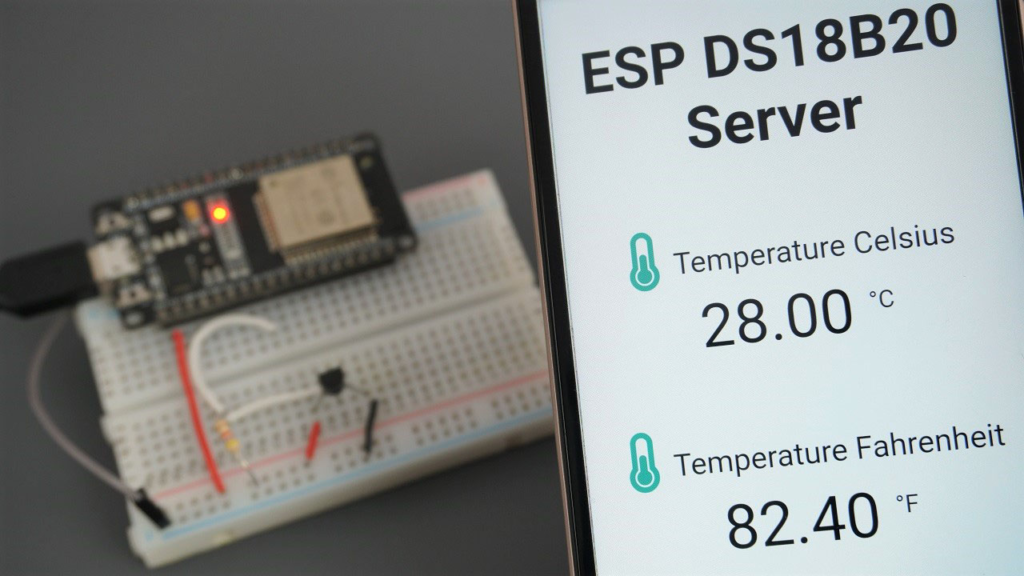
The DS18B20 stands out in the world of microcontroller-compatible sensors. Its one-wire digital interface means you only need one data pin (plus ground) from your ESP32 for communication, drastically simplifying wiring, especially for multiple sensors. Each sensor has a factory-programmed unique 64-bit address, allowing many devices to share the same data bus without conflict. With an operating range from -55°C to +125°C and a typical accuracy of ±0.5°C, it is suitable for applications ranging from environmental monitoring to industrial processes.
Communication Protocol: One-Wire (1-Wire)
Power Supply: 3.0V to 5.5V (Compatible with ESP32‘s 3.3V logic)
Temperature Range: -55°C to +125°C (-67°F to +257°F)
Accuracy: ±0.5°C (from -10°C to +85°C)
Conversion Time: Up to 750ms for 12-bit resolution
You can power the DS18B20 in two ways: Normal Mode (recommended for stability) or Parasite Power Mode. The following table outlines the connections for each method using ESP32 GPIO 4 as the data pin.
| Connection | Normal Mode (with External 3.3V) | Parasite Power Mode |
|---|---|---|
| DS18B20 VDD (Red Wire) | ESP32 3.3V Pin | Not Connected |
| DS18B20 DATA (Yellow Wire) | ESP32 GPIO 4 (via 4.7kΩ resistor) | ESP32 GPIO 4 (via 4.7kΩ resistor) |
| DS18B20 GND (Black Wire) | ESP32 GND Pin | ESP32 GND Pin |
| Pull-up Resistor | 4.7kΩ between DATA and 3.3V | 4.7kΩ between DATA and 3.3V |
⚠️ The Pull-up Resistor is Crucial: The 4.7kΩ resistor between the data line and 3.3V is mandatory for stable communication in both configurations. Omitting it is a common reason for sensor read failures.
Before you can write code, you need to install two essential libraries in your Arduino IDE via Sketch > Include Library > Manage Libraries:
OneWire by Paul Stoffregen: Provides the low-level protocol to communicate with one-wire devices.
DallasTemperature by Miles Burton: Offers a simplified, high-level API specifically for DS18B20 and similar sensors, built on top of the OneWire library.
After installation, restart the Arduino IDE to complete the process.
Let’s start with the foundational code to read temperature from one sensor. This sketch will print readings in both Celsius and Fahrenheit to the Serial Monitor every 5 seconds.
/*********
 * ESP32 with Single DS18B20 Sensor
 * Reads and prints temperature to Serial Monitor
 * Complete project details: https://RandomNerdTutorials.com
 *********/

#include <OneWire.h>
#include <DallasTemperature.h>

// GPIO where the DS18B20 data wire is connected
const int ONE_WIRE_BUS = 4;

// Setup instances for OneWire and DallasTemperature
OneWire oneWire(ONE_WIRE_BUS);
DallasTemperature sensors(&oneWire);

void setup(void) {
  Serial.begin(115200); // Start serial communication
  sensors.begin();      // Initialize the sensor library
  Serial.println("DS18B20 Temperature Sensor Initialized");
}

void loop(void) {
  sensors.requestTemperatures(); // Send command to get temperatures

  // Read temperature in Celsius (Index 0 for first sensor)
  float tempC = sensors.getTempCByIndex(0);
  // Convert to Fahrenheit
  float tempF = sensors.getTempFByIndex(0);

  // Check for valid reading (sensors return -127.00 on error)
  if (tempC != DEVICE_DISCONNECTED_C) {
    Serial.print("Temperature: ");
    Serial.print(tempC);
    Serial.print(" °C  |  ");
    Serial.print(tempF);
    Serial.println(" °F");
  } else {
    Serial.println("Error: Could not read temperature data");
  }

  delay(5000); // Wait 5 seconds between readings
}
Library & Pin Definition: The OneWire and DallasTemperature libraries are included. The data pin (GPIO 4) is defined, and library instances are created.
Setup Routine: Serial communication starts at 115200 baud for debugging. sensors.begin() initializes the one-wire bus.
Reading Temperature: sensors.requestTemperatures() sends a command to all sensors on the bus to perform a temperature conversion. sensors.getTempCByIndex(0) fetches the value from the first (index 0) sensor found.
Error Handling: The code checks if the reading equals DEVICE_DISCONNECTED_C (-127°C), which indicates a communication problem, and prints an error message instead.
The real power of the DS18B20 shines when you connect multiple sensors. Wire all sensors in parallel: connect all VDD pins to 3.3V, all GND pins to GND, and all DATA pins to GPIO 4 (with a single 4.7kΩ pull-up resistor).
The following sketch automatically discovers all connected sensors, prints their unique addresses, and displays each one’s temperature.
/*********
 * ESP32 with Multiple DS18B20 Sensors
 * Scans the bus and prints temperature for each device
 *********/

#include <OneWire.h>
#include <DallasTemperature.h>

#define ONE_WIRE_BUS 4
OneWire oneWire(ONE_WIRE_BUS);
DallasTemperature sensors(&oneWire);

int deviceCount = 0;
DeviceAddress tempDeviceAddress; // Array to hold device address

void setup(void) {
  Serial.begin(115200);
  sensors.begin();

  // Count and list all devices on the bus
  deviceCount = sensors.getDeviceCount();
  Serial.print("Found ");
  Serial.print(deviceCount);
  Serial.println(" device(s).");

  // Loop to print each device's address
  for (int i = 0; i < deviceCount; i++) {
    if (sensors.getAddress(tempDeviceAddress, i)) {
      Serial.print("Device ");
      Serial.print(i);
      Serial.print(" Address: ");
      printAddress(tempDeviceAddress); // Call helper function
      Serial.println();
    }
  }
}

void loop(void) {
  sensors.requestTemperatures();

  // Loop through each device and print its temperature
  for (int i = 0; i < deviceCount; i++) {
    if (sensors.getAddress(tempDeviceAddress, i)) {
      float tempC = sensors.getTempC(tempDeviceAddress); // Read by address
      Serial.print("Device ");
      Serial.print(i);
      Serial.print(" Temp: ");
      Serial.print(tempC);
      Serial.println(" °C");
    }
  }
  Serial.println("-----");
  delay(10000); // Wait 10 seconds
}

// Helper function to print a device's 64-bit address
void printAddress(DeviceAddress deviceAddress) {
  for (uint8_t i = 0; i < 8; i++) {
    if (deviceAddress[i] < 16) Serial.print("0");
    Serial.print(deviceAddress[i], HEX);
  }
}
To access your temperature readings from any browser on your local network, you can turn your ESP32 into a web server. We’ll use the efficient ESPAsyncWebServer and AsyncTCP libraries for smooth performance.
In the Library Manager, install:
ESPAsyncWebServer by dvarrel
AsyncTCP by dvarrel (for ESP32)
This code creates a responsive web page that automatically updates the temperature every 10 seconds without requiring a page refresh.
/*********
 * ESP32 DS18B20 Asynchronous Web Server
 * Displays temperature on a auto-updating web page
 *********/

#include <WiFi.h>
#include <ESPAsyncWebServer.h>
#include <OneWire.h>
#include <DallasTemperature.h>

// Replace with your network credentials
const char* ssid = "YOUR_SSID";
const char* password = "YOUR_PASSWORD";

#define ONE_WIRE_BUS 4
OneWire oneWire(ONE_WIRE_BUS);
DallasTemperature sensors(&oneWire);

AsyncWebServer server(80); // Server object on port 80

String readTemperature() {
  sensors.requestTemperatures();
  float tempC = sensors.getTempCByIndex(0);
  if (tempC == DEVICE_DISCONNECTED_C) {
    return "Sensor Error";
  }
  return String(tempC);
}

// HTML & CSS for the web page (stored in PROGMEM to save RAM)
const char index_html[] PROGMEM = R"rawliteral(
<!DOCTYPE HTML><html>
<head>
  <meta name="viewport" content="width=device-width, initial-scale=1">
  <title>ESP32 Temperature Monitor</title>
  <style>
    body { font-family: Arial; text-align: center; margin: 50px; }
    .reading { font-size: 48px; font-weight: bold; color: #059e8a; }
    .unit { font-size: 24px; }
    .label { font-size: 20px; color: #555; }
  </style>
</head>
<body>
  <h1>🌡️ ESP32 Temperature Server</h1>
  <div>
    <p class="label">Current Temperature</p>
    <span class="reading" id="temp">%TEMPERATURE%</span>
    <span class="unit">°C</span>
  </div>
</body>
<script>
// JavaScript to update temperature every 10 seconds
setInterval(function() {
  var xhttp = new XMLHttpRequest();
  xhttp.onreadystatechange = function() {
    if (this.readyState == 4 && this.status == 200) {
      document.getElementById("temp").innerHTML = this.responseText;
    }
  };
  xhttp.open("GET", "/temperature", true);
  xhttp.send();
}, 10000);
</script>
</html>)rawliteral";

// Processor to replace placeholder in HTML with actual sensor value
String processor(const String& var) {
  if (var == "TEMPERATURE") {
    return readTemperature();
  }
  return String();
}

void setup() {
  Serial.begin(115200);
  sensors.begin();

  // Connect to WiFi
  WiFi.begin(ssid, password);
  while (WiFi.status() != WL_CONNECTED) {
    delay(1000);
    Serial.println("Connecting to WiFi...");
  }
  Serial.print("Server IP Address: ");
  Serial.println(WiFi.localIP()); // <- You will access the page at this IP

  // Define server routes
  server.on("/", HTTP_GET, [](AsyncWebServerRequest *request) {
    request->send_P(200, "text/html", index_html, processor);
  });
  server.on("/temperature", HTTP_GET, [](AsyncWebServerRequest *request) {
    request->send_P(200, "text/plain", readTemperature().c_str());
  });

  server.begin(); // Start the server
}

void loop() {
  // Nothing needed here - the server runs asynchronously
}
If your project isn’t working, consult this table to diagnose and fix common problems:
| Symptom | Possible Cause | Solution |
|---|---|---|
| Sensor reads -127°C (or 85°C) | Missing 4.7kΩ pull-up resistor, loose connection, or incorrect GPIO pin. | 1. Verify the 4.7kΩ resistor is between DATA and 3.3V. 2. Check all wiring connections. 3. Ensure the correct GPIO is defined in ONE_WIRE_BUS. |
| Web server fails to connect | Incorrect WiFi credentials, weak signal, or library conflict. | 1. Double-check ssid and password.2. Ensure you installed ESPAsyncWebServer and AsyncTCP, not the similarly named synchronous libraries. |
| Multiple sensors not detected | Wiring error in parallel connection or power issue. | 1. Confirm all VDD, GND, and DATA lines are connected in parallel. 2. Use an external 3.3V power supply if connecting more than 3-4 sensors to avoid overloading the ESP32. |
| “Failed to read from DS18B20” | Parasite power mode instability or long wires. | 1. Switch to Normal Mode (connect VDD to 3.3V) for better reliability. 2. Keep wires as short as possible, especially for multiple sensors. |
With a working temperature monitoring system, you can expand your project:
Data Logging: Modify the web server code to save temperature readings with timestamps to a microSD card.
Home Automation: Send temperature data to platforms like Home Assistant or Node-RED via MQTT to trigger alerts or control heaters/AC units.
Weather Station: Combine the DS18B20 with a humidity sensor (like DHT22) and the web server to create a full-featured local weather station.
This guide provides a robust, tested foundation for integrating the DS18B20 with your ESP32. By following the wiring diagrams, using the updated 2026 code examples, and applying the troubleshooting tips, you’ll be able to implement reliable temperature sensing for any application.
======================================
No account yet?
Create an Account